Panel UI
Our Panel is based on Vue and has its own UI component kit. You can use and extend all our components in your Panel plugins for a super fast and consistent developer experience.
When developing your own plugins for the Panel, you can build on top of a large number of components, libraries and helpers that we use ourselves to build the Panel. This will help you to achieve a consistent look and user experience. But how can you find out what exists and how to use it?
lab.getkirby.com
We have developed a Panel Lab where you can find documentation on all components as well as many examples how to use those. In the Lab can view how the components look, but also inspect the code used to build them.
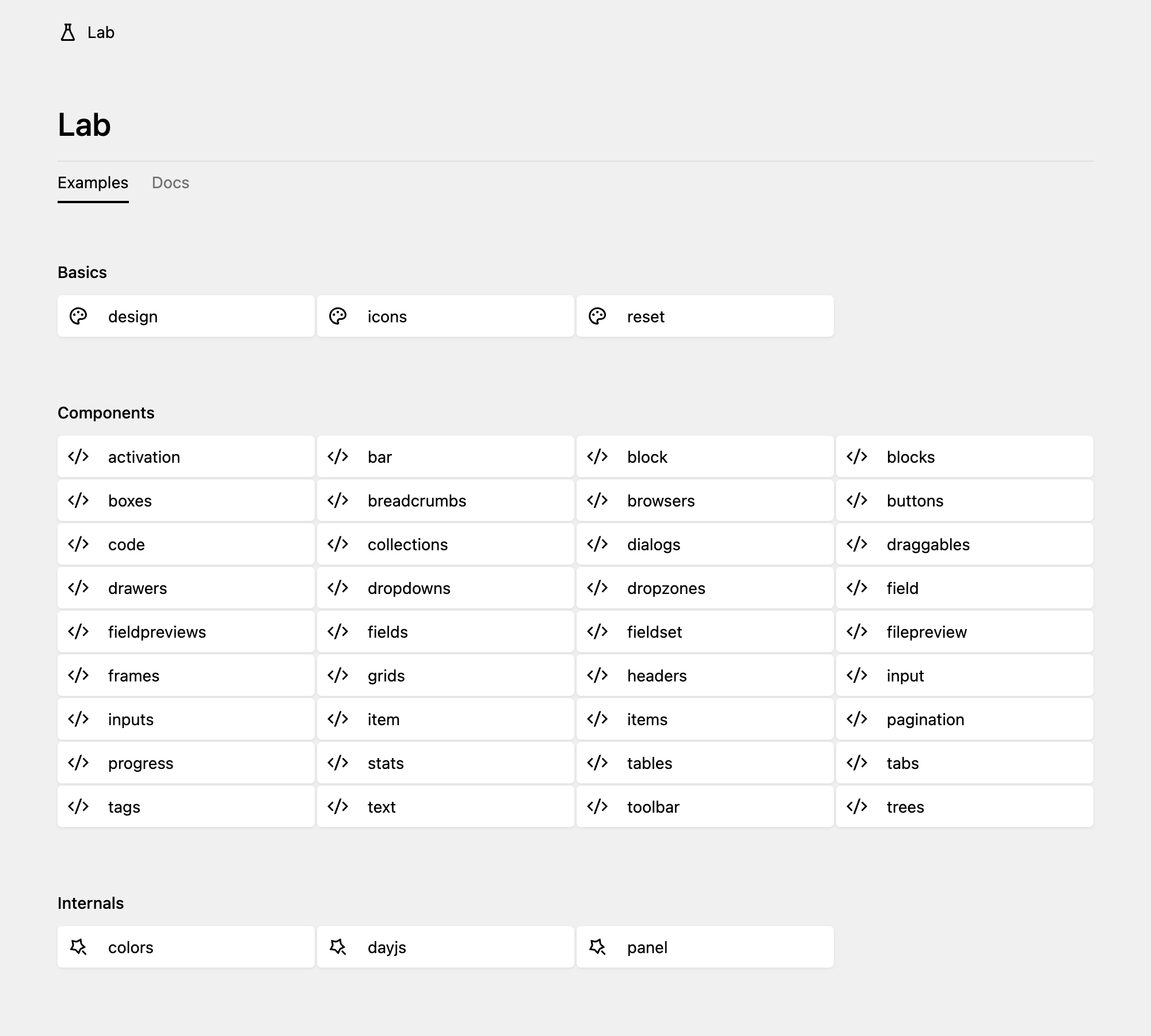
Access the Panel Lab locally
The Panel Lab is Kirby's interactive reference for all our k- UI components. The same playground published at lab.getkirby.com. It also ships inside Kirby and runs in your own Panel at `https://your-site.test/panel/lab.
The Lab has two tabs:
- Examples for the interactive component demos
- Docs for the generated reference (props, slots, events, methods) for every UI component
Why the Lab is empty
To keep the distributed package small, the example files (panel/lab) and the generated component docs (panel/dist/ui) are excluded from Kirby's release archive. In a fresh install the Lab will therefore show:
The default Lab examples are not installed. / The UI docs are not installed.
Since 5.5.1
Install the examples and docs
The examples and docs are built automatically and attached to every GitHub release as a single ZIP, so you can add them to your local installation:
- Open the release that matches your installed Kirby version.
- Under assets, download
lab-<version>.zip(e.g.lab-5.5.1.zip). - Extract it. You'll get two folders:
uiandlab. - Move them into your Kirby core's Panel directory:
ui→kirby/panel/dist/uilab→kirby/panel/lab
- Reload
/panel/lab/docs. The Examples Docs tabs are now populated.
Both ui and lab are new folders that don't exist in a default install, so you're only adding files. Don't drop the ZIP contents directly into kirby/panel/. That folder already contains the built Panel in dist/, which must stay untouched. Always place the ui folder inside the existing dist folder.
Always download the ZIP from the release that matches your installed Kirby version, so the examples and docs reflect the components you actually have.
If the examples don't render and you see "The Vue template compiler must be enabled to show lab examples"* make sure you haven't disabled the panel.vue.compiler option in your config.