Email testing
The problem
Testing contact forms or other outgoing email from your website/app locally can be a real pain. You have to set up your local webserver to enable mail and waste a lot of time waiting for mail to arrive in your inbox if it arrives at all. Additionally, you might even hurt your email address if you test with your private email as sender.
What alternatives are there?
One option is the use of services like MailChimp etc., which are not only useful for sending newsletters, but also transactional emails. Many of these services have a free tier for a limited amount of mails, and can therefore be used for testing during development for free. However, for all these services you need to set up an account.
What is MailPit?
MailPit is an Open Source email testing tool with a fake SMTP server underneath. Once configured, MailPit intercepts all outgoing mail, and stores it for display in a web-based user interface. MailPit runs on macOS, Windows, and Linux.
MailPit has some more interesting features that you can find in the feature list, including an API to list, retrieve and delete messages or an option to release messages to real SMTP servers.
Installation
There are several options to install MailPit: You can either
- on Mac, install via Homebrew
brew install mailpit - on Mac or Linux, use an installation script
- for all platforms, download a binary
- run as Docker container
See the MailPit documentation for all options and details.
After installation, start MailPit from the command line with mailpit. The process runs in the foreground until you stop it with Ctrl+C. To run it in the background instead, append & (e.g. mailpit &), or use a separate terminal for MailPit. Run mailpit -h to see available options and to customise ports or other settings.
By default, MailPit runs with the following default settings:
- SMTP server runs on port 1025
- HTTP server runs on port 8025
- Use of in-memory message storage
If your system already uses ports 1025/8025 for other services, you can configure MailPit to use other settings.
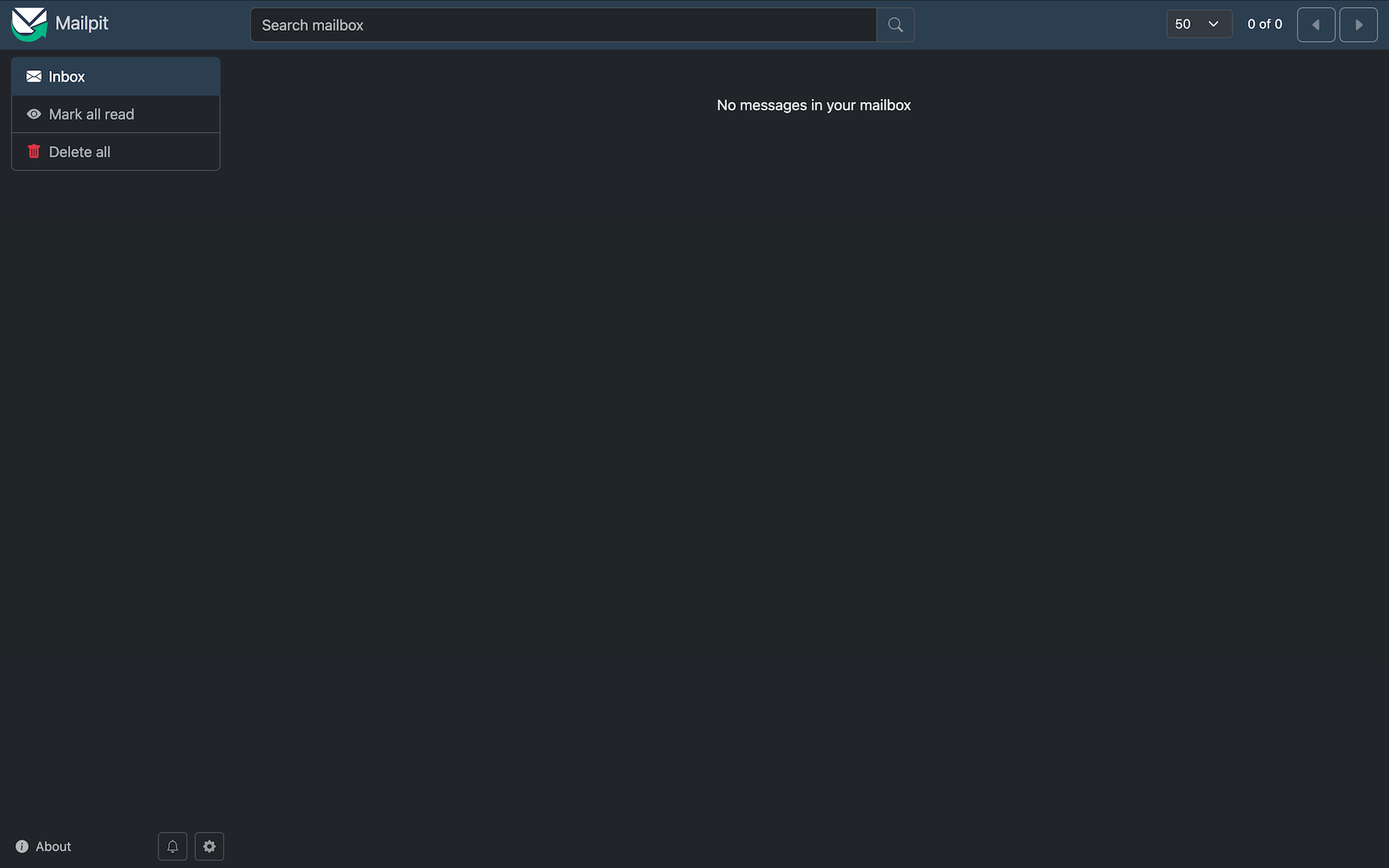
Configure Kirby to use MailPit
Once MailPit is installed and running on your system, you can start using it with Kirby. The easiest way to do so is to set up email transport in your (local) site/config/config.php file:
return [
  // … other config settings
  'email' => [
    'transport' => [
      'type' => 'smtp',
      'host' => 'localhost',
      'port' => 1025,
      'security' => false
    ]
  ],
];
With Kirby, you can use multiple config files for different environments, so you can set up email transport with MailPit for local development and with some other configuration for staging or production. See our multi-environment configuration docs.
A test email
Now we are ready for testing our first email.
First, we need an email template in the /site/templates/emails/ folder (create the folder if it does not exist), let's call it email.php, then copy the following code into it:
We are testing MailPit:

<?php echo $text ?>
Since we just want to test that everything works as expected, put the following code into one of your project's templates or controllers.
<?php

$kirby->email([
    'template' => 'email',
    'from'     => 'yourcontactform@yourcompany.com',
    'to'       => 'you@yourcompany.com',
    'subject'  => 'Let us test if MailPit works',
    'data'     => [
        'text'   => 'Here is some dummy text',
    ]
]);
Alternatively, you can set up the basic contact form from our Cookbook recipe.
Before you hit the send button of the form, or open the page with the email code in the browser, let's verify that everything is in place:
- MailPit is up and running
- Email transport in your config is set to use SMTP port 1025 (or the port you have configured)
- You can access the MailPit Web UI at http://localhost:8025 (or the port you have configured)
Now go open the page with the email code in a browser, and if all went well, you should now see the newly sent mail in MailPit's Web UI:

If you put the email code into an arbitrary template instead of setting up a form, remember to remove it again after you have finished testing. Otherwise you will see an error if MailPit is not running and you want to visit that page again some time later, when you have long forgotten that you put that test code in there.