Kosmos - A newsletter tool
I built a tool and named it Kosmos, like our (almost) monthly newsletter about Kirby and the world. It’s one of the hidden champions I mentioned in our 100th anniversary edition of Kosmos. It’s named that way for a reason: from now on, we’ll be creating our new Kosmos issues with it.
This isn’t your typical step-by-step recipe, but rather a journey of how it evolved into what it is now and the problems it solves for us, mixed with a homeopathic dose of code. Along the way, you may also learn something about the flexibility of Panel buttons, how to create layouts for the layout field programmatically, and—last but not least—the power of Kirby as an internal tool.
The past
For years, I collected bookmarks for upcoming Kosmos editions in different places: I copied them into one of the notebooks in my old Quiver app, added them directly to a new newsletter draft in our newsletter provider’s app, or sometimes created a text file on my Mac. When it was time to draft a new newsletter, I would search for the links I liked, write short summaries for them, and organize them under a few headings until the newsletter was finally ready to be sent.
Afterwards, I had to manually create an issue to publish on our website, which was always a bit tedious and often led to a significant delay between sending the newsletter and publishing it online. While some delay was and is intentional, a gap of weeks or months was not (sorry for that).
A new approach
There came a time when I thought, “Why don’t I use Kirby to collect all these bookmarks?” I know the CMS well and can bend it to my will. It could start simple and evolve as needed. No sooner thought than done.
So I created a bookmarks page where each bookmark lives as a child page. Initially, each bookmark had little more than a created, url, and tags field. Today, the bookmark.yml blueprint looks like this:
title: Bookmark

options:
  changeTemplate:
    - event
create:
  title: "{{ page.link }}"
  slug: "{{ page.link.slug }}-{{ page.created.toDate('Y-m-d') }}"
  fields:
    - link
    - kosmos
    - type
    - summary
    - ready
  status: unlisted
  redirect: false
fields:
  kosmos:
    type: tags
    width: 1/3
    max: 1
    options:
      type: query
      query: page.siblings.pluck('kosmos')
  ready:
    type: toggle
    width: 1/3
  used:
    type: toggle
    width: 1/3
  cover:
    type: files
    query: site.find('files').files
    uploads:
      parent: page('files')
  created:
    type: date
    default: now
    time: true
  link:
    type: url
    required: true
  type:
    type: tags
    max: 1
    required: true
    options:
      type: query
      query: site.categories.toBlocks
      text: "{{ item.icon }} {{ item.category.value }}"
      value: "{{ item.id }}"
  summary:
    type: textarea
    help: Add {{ link }} as a placeholder that will be auto-replaced with the url from the link field
It uses a custom create dialog to create new bookmarks quickly, with as much content as time and mood allow at the moment of creating a new entry:
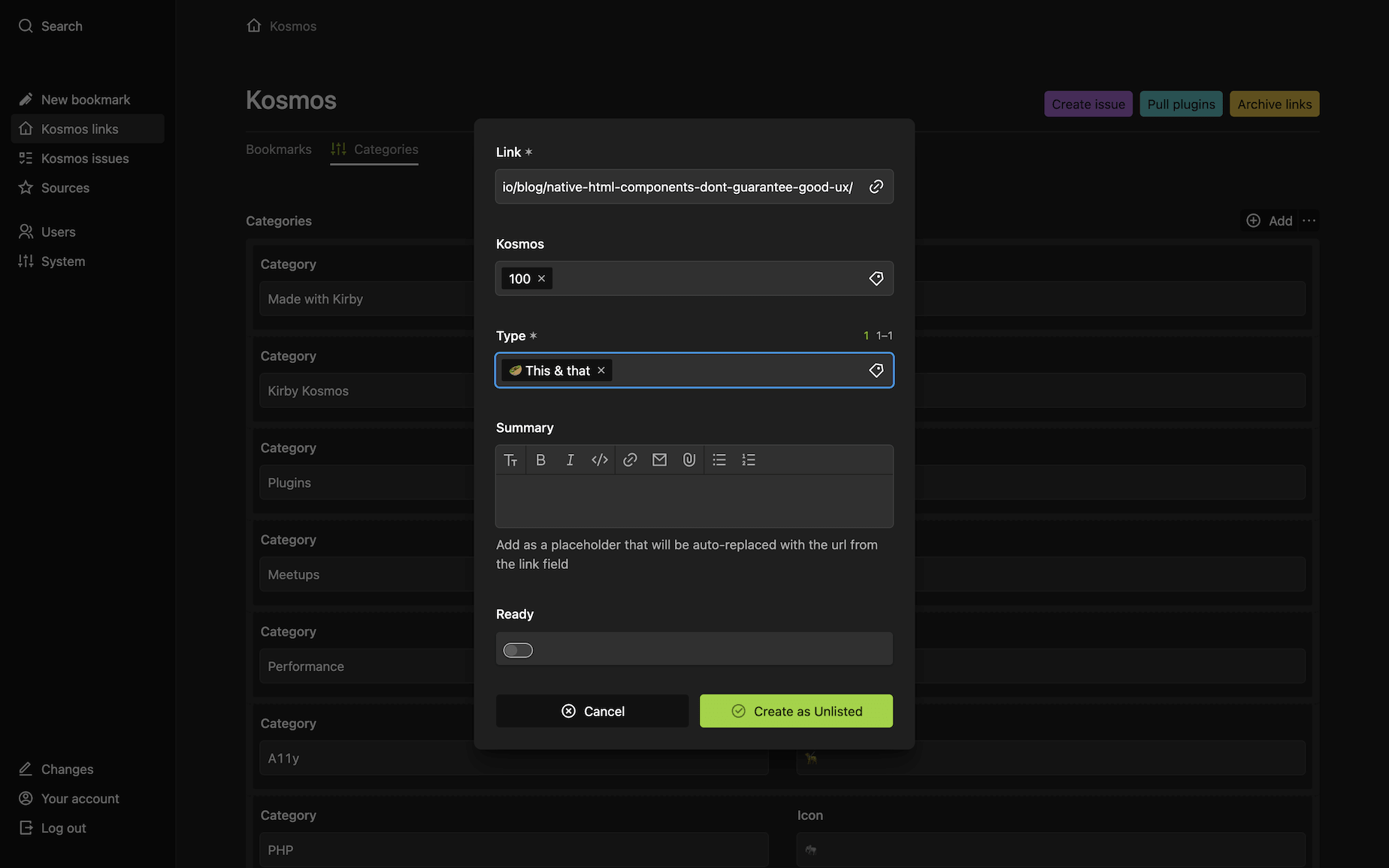
Each bookmark is assigned the intended Kosmos issue as a tag, along with a category that later determines the section it appears in when the Kosmos edition is created.
The categories are stored in a blocks field, which has the added advantage of providing a unique ID for free, and can be easily reordered:

Over time, we grew more and more unhappy with our newsletter provider. Using their editor was a pain and always carried the risk of overwriting content, and destroying the layout. On top of that, we had to create a separate version for the website. So why not turn this little bookmark tool into something more powerful? Why not create everything in one place, and then just send it to some API? Enter…
Magic buttons
The Kosmos tool now makes extensive use of Panel view buttons. Originally, back in the pre–panel-view-button days, there was only a single one: a Janitor button.
Three of these buttons you might see in the screenshot above:
Create issue: Generates a new Kosmos issue from the corresponding bookmarks
Pull plugins: Pulls in new plugins from plugins.getkirby.com
Archive links: Moves used links into an archive
Let’s take a closer look at what the Create issue button does.
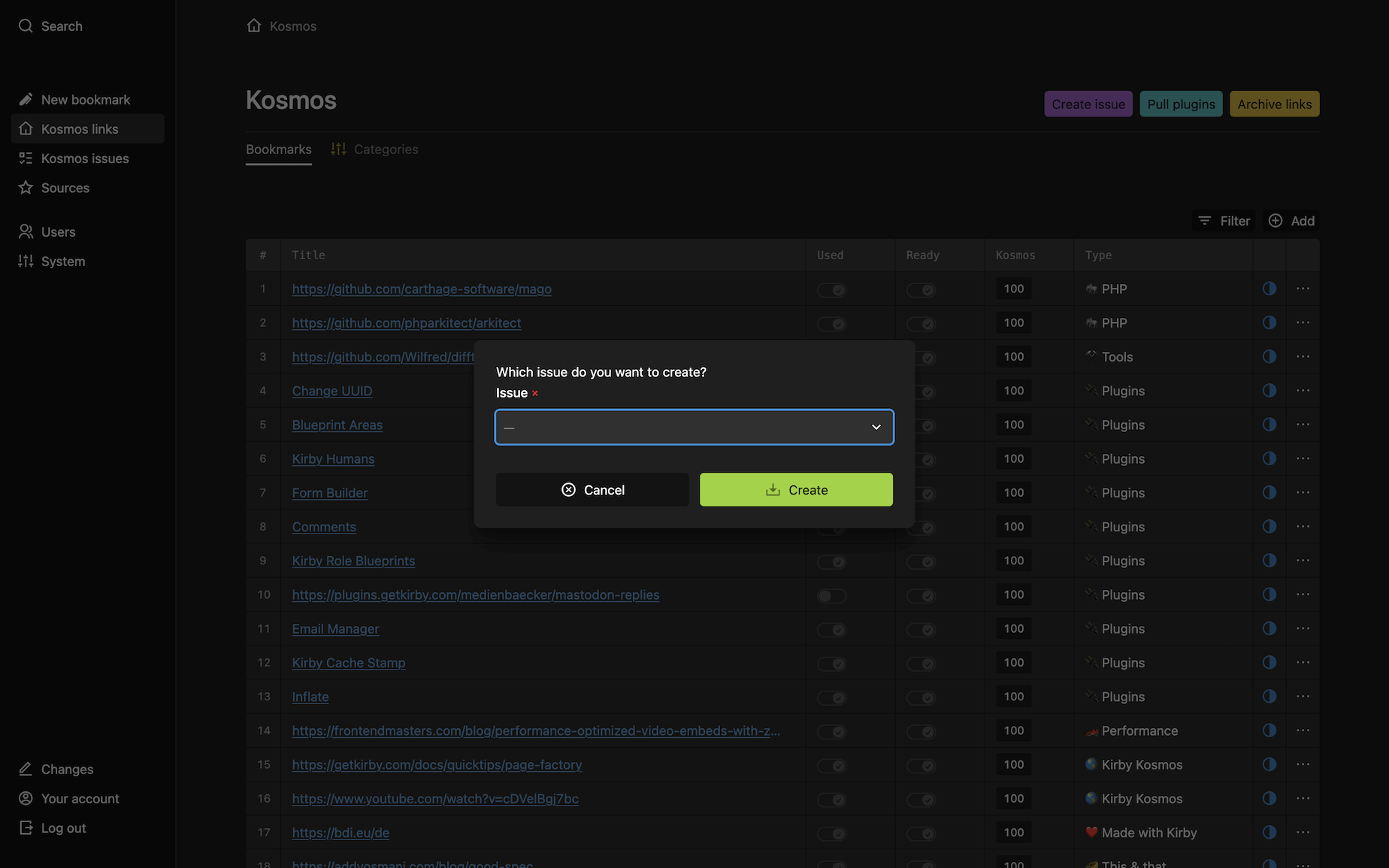
Clicking it opens a dialog to select the issue to create. In this example, there are only bookmarks for one issue, so we select 100. Another click on Create then performs the “magic” in the background. This logic is implemented via a createIssue() method in the BookmarksPage model (for the purposes of this recipe, I removed some irrelevant stuff):
<?php

use Kirby\Cms\Block;
use Kirby\Cms\Blocks;
use Kirby\Cms\Layout;
use Kirby\Cms\Layouts;
use Kirby\Cms\Page;
use Kirby\Cms\Pages;
use Kirby\Toolkit\Str;

class BookmarksPage extends Page
{

    /**
     * @throws ErrorException
     */
    public function createIssue(Page $parent, int $issue): void
    {
        if (($kosmos = $parent->childrenAndDrafts()->find('kosmos/' . Str::slug($issue))) &&
            $kosmos->isDraft() === false) {
            throw new ErrorException('Published Kosmos issue exists and cannot be overwritten');
        }

        try {
            $layouts   = $this->intro(); // prepend intro with placeholder
            $bookmarks = $this->bookmarks($issue);
            $bookmarks = $bookmarks
                ->sort(fn($bookmark) => $bookmark->typeOrder())
                ->groupBy('type', false);

            foreach ($bookmarks as $type => $items) {

                // Skip if the type has no entries
                if ($items->isEmpty()) {
                    continue;
                }

                // Create a heading for each group
                $blocks = $this->addBlock(new Blocks(),
                    'heading',
                    ['text' => $this->heading($type), 'level' => 'h2']
                );

                $category  = $this->site()->categories()->toBlocks()->findBy('id', $type);
                $blockType = $category?->category()->value() === 'event' ? 'event' : 'markdown';

                // Create blocks for individual bookmarks
                foreach ($items as $bookmark) {
                    if ($cover = $bookmark->cover()->toFile()) {
                        $blocks = $this->addBlock(
                            $blocks,
                            'image',
                            [
                                'image' => [$cover->uuid()->toString()],
                            ]
                        );
                    }

                    if ($blockType === 'event') {
                        $blocks = $this->addBlock(
                            $blocks,
                            'event',
                            [
                                'date'  => $bookmark->date()->value(),
                                'link'  => $bookmark->link()->value(),
                                'title' => $bookmark->title()->value(),
                            ]
                        );
                    } else {
                        $blocks = $this->addBlock(
                            $blocks,
                            'markdown',
                            ['text' => Str::template(
                                $bookmark->summary()->value(),
                                ['link' => $bookmark->link()->value()]
                            )]
                        );
                    }
                }

                $layout  = $this->createLayout($blocks->toArray());
                $layouts = $layouts->add($layout);
            }

            // Create new kosmos issue page
            if ($this->savePage($parent, $layouts, $issue) === false) {
                // do something
            }

        } catch (Exception $e) {
            // do something
        }
    }

    /**
     * @throws \Kirby\Exception\InvalidArgumentException
     */
    private function addBlock($blocks, string $type, array $content = []): Blocks
    {
        $block = new Block([
            'content' => $content,
            'type'    => $type,
        ]);

        return $blocks->add($block);
    }

    private function createLayout(array $array): Layout
    {
        return new Layout([
            'columns' => [
                [
                    'width'  => '1/1',
                    'blocks' => $array,
                ],
            ],
        ]);
    }

    private function bookmarks(int $issue): Pages
    {
        return $this
            ->children()
            ->filterBy('intendedTemplate', 'bookmark')
            ->filterBy('kosmos', $issue)
            ->filterBy('ready', true);
    }

    private function heading(string $typeId): string
    {
        $categories = $this->site()->categories()->toBlocks();
        $category   = $categories->findBy('id', $typeId);

        return $category ? $category->icon()->value() . ' ' . $category->category()->value() : '';
    }

    private function savePage(Page $parent, Layouts $layouts, int $issue): bool
    {
        if ($kosmos = $parent->childrenAndDrafts()->find('kosmos/' . Str::slug($issue))) {
            try {
                $kosmos->update([
                    'title'   => 'Kosmos ' . $issue,
                    'layouts' => json_encode($layouts->toArray(), JSON_PRETTY_PRINT | JSON_THROW_ON_ERROR),
                    'created' => date('Y-m-d'),
                ]);
                return true;
            } catch (Exception $e) {
            }
        }

        try {
            $parent->createChild([
                'slug'     => Str::slug($issue),
                'template' => 'kosmos-issue',
                'draft'    => true,
                'content'  => [
                    'title'   => 'Kosmos ' . $issue,
                    'layouts' => json_encode($layouts->toArray(), JSON_PRETTY_PRINT | JSON_THROW_ON_ERROR),
                    'created' => date('Y-m-d'),
                ],
            ]);
            return true;
        } catch (Exception $e) {
        }

        return false;
    }
}
Flexible layouts
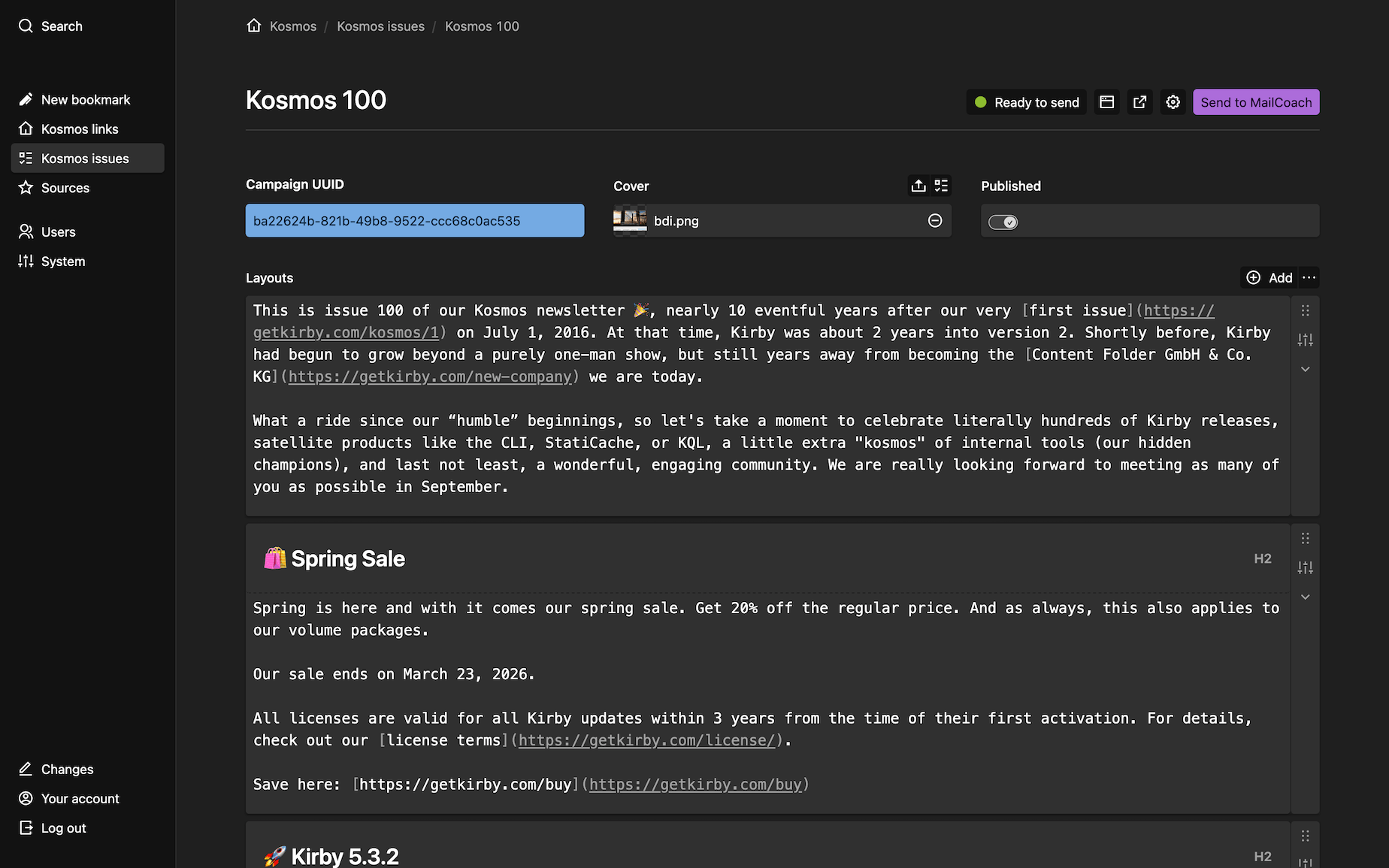
I had originally planned to use blocks or just a plain markdown field, but the layouts field turned out to be much more versatile. Each layout is a section with a headline and the bookmarks assigned to this category. As a result, layouts can be moved around easily to change the order of sections. Likewise, individual blocks can be moved into a new category, for example, if there are sections with only a single element, they can be dragged into the "This & That" section, and the original layout can be deleted.
The auto-generated Kosmos issue starts as a draft and can be recreated at any time as more bookmarks are added.
Once it leaves draft status, it can no longer be regenerated via the button. In the unlisted state, the issue can be finalized and enriched with manual content such as an intro.
When it’s ready to be sent, its status is changed to listed. It can then be sent to our new newsletter provider, Mailcoach, via a Send to Mailcoach Panel button.
This is what the final result looks like:
Sending newsletters
Mjml as email template language
The block snippets for the Kosmos issues are created using the MJML
template language. For each block type (event, heading, image, and markdown), there is a corresponding MJML block snippet. In addition, there are MJML snippets for the header, body, and footer.
Mailcoach API
At the top of each generated Kosmos issue, there is a Send to Mailcoach button. When clicked, the following happens:
- The different MJML snippets are combined into a single string, which is then converted to HTML using the spatie/mjml-php library.
- The HTML is then sent to Mailcoach via its API.
Mission accomplished!
All listed Kosmos issues are rendered as a JSON content representation, which is consumed at getkirby.com/kosmos to create virtual children that are merged into the collection of older Kosmos issues stored in the file system. This means the newsletters no longer have to be created a second time for publication on the website.
The future
The Kosmos tool is still a work in progress. There are still rough edges, and there’s still room to automate even more. And we already have plans to turn it into our “mighty marketing machine™️.”
Did I mention how easy it is to use Kirby for such internal tools? I love it. What are you going to build?