Passkeys & two-factor auth
Kirby 6 adds passkeys, makes two-factor authentication available to every user independently and lets you define your own password policy. Everything security-related for an account now lives in one place: the new security drawer.
Passkeys
Passkeys (WebAuthn) replace something you remember with something you have: the passkey lives on the user's device, in their password manager or on a hardware security key and is unlocked with the device's biometrics or PIN.
You can use passkeys in two ways: as a login method of their own or as a second factor after the password.
As login method
Add webauthn to your login methods:
return [
    'auth' => [
        'methods' => ['password', 'webauthn']
    ]
];
The login view opens with the first method in the list and offers the others as alternatives below. Put webauthn first to make passkeys the default:
return [
    'auth' => [
        'methods' => ['webauthn', 'password']
    ]
];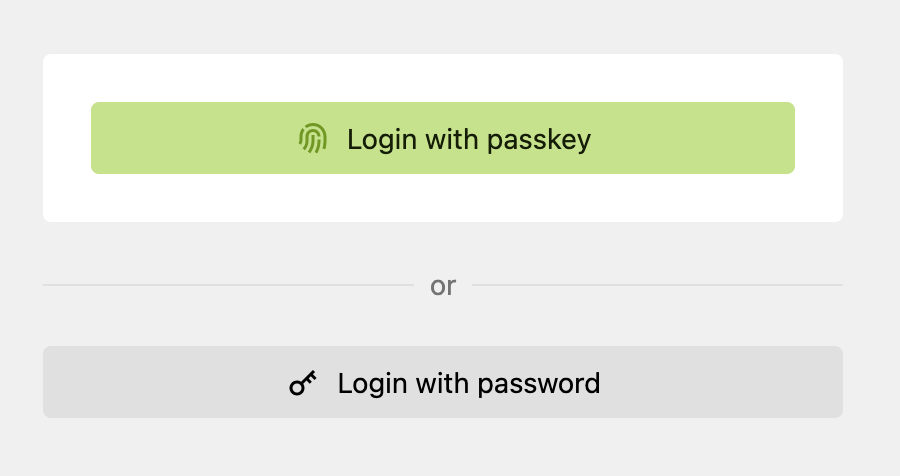
Users don't type an email address. The browser opens its passkey prompt right away, the user picks one of their passkeys for your site and unlocks it, and Kirby identifies the account from the passkey itself.
Keep password (or code) enabled next to webauthn. Users have to be logged in to register their first passkey, and nobody can register a passkey for someone else.
As second factor
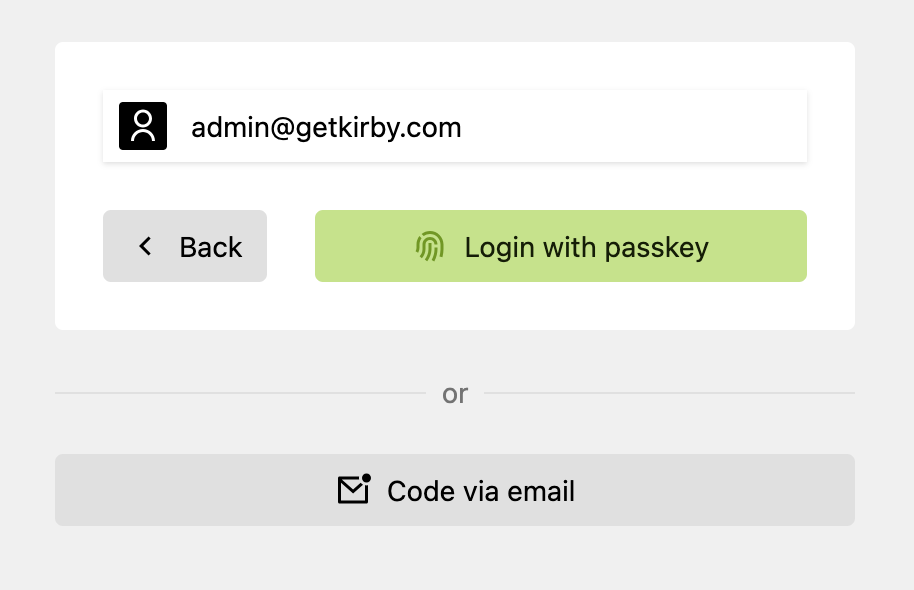
Passkeys are also a second factor: users log in with email and password and then confirm with one of their passkeys. You don't need to configure anything for this. webauthn is now part of the default auth.challenges list, together with totp and email (see two-factor auth below).
Managing passkeys
Users manage their passkeys in the security drawer of their account: Security › Passkeys. They can give each new passkey a name (e.g. "Work laptop" or "YubiKey").
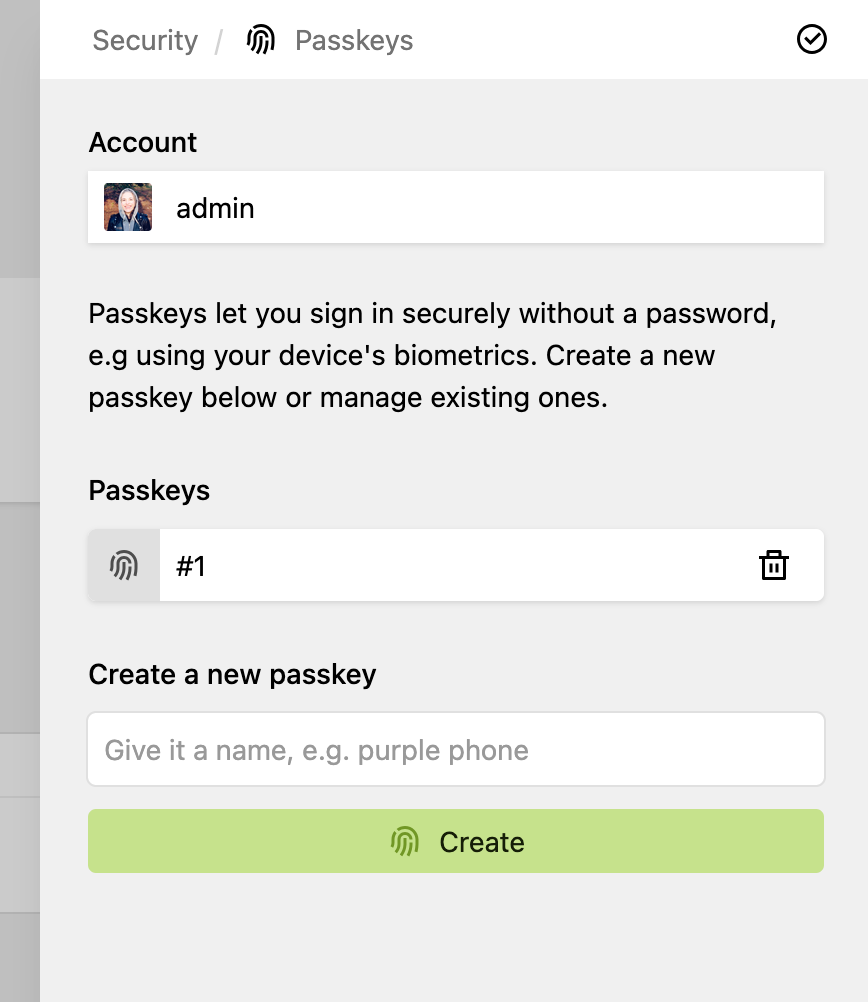
To remove one of their passkeys, users confirm with one of their passkeys. Admins can open the security drawer of other users and remove their passkeys after confirming with their own password, e.g. when a device got lost. Admins can't register passkeys for other users.
Two-factor authentication
So far, two-factor authentication was all or nothing: with '2fa' => true, every user had to complete a second step after their password; without it, nobody could. On most sites, forcing it on every editor isn't realistic. In Kirby 6, every user can set up a second factor for their own account in the security drawer:
- Passkeys: register a passkey (see above).
- Authenticator app: scan a QR code with an authenticator app and confirm with a generated one-time code.
- Code via email: Kirby sends a one-time code to the account's email address.
From then on, Kirby asks this user for the second factor after their password.
2fa option
The auth.methods.password.2fa config option has changed:
2fa setting |
Kirby 5 | Kirby 6 |
|---|---|---|
| not set | Nobody is asked for a second factor. Users can't set up an authenticator app. | Users who have set up a second factor are asked for it. Everybody else logs in with their password only. |
true |
Every user is asked for a second factor: the authenticator app code if set up, otherwise a code via email. | Every user is asked for a second factor. Users who haven't set up a passkey or authenticator app get a code via email. |
To require a second factor from every user:
return [
    'auth' => [
        'methods' => [
            'password' => ['2fa' => true]
        ]
    ]
];
As before, the code and password-reset login methods can't be combined with '2fa' => true, because they would let users skip the second factor.
Password policy
By default, Kirby only requires passwords to be at least 8 characters long. With the new auth.passwords option, you define your own policy.
Preset rules
return [
    'auth' => [
        'passwords' => [
            'minlength' => 12,
            'uppercase' => true,
            'lowercase' => true,
            'digits'    => 2,
            'symbols'   => true
        ]
    ]
];| Rule | Description |
|---|---|
minlength |
Minimum number of characters. Values below 8 have no effect: 8 is always the absolute minimum. |
maxlength |
Maximum number of characters. 1000 is always the absolute maximum. |
lowercase |
Require lowercase letters (or how many) |
uppercase |
Require uppercase letters (or how many) |
digits |
Require digits (or how many) |
symbols |
Require symbols (any character that is neither a letter nor a digit) |
Regular expression or callback
For anything else, pass a regular expression or a callback as rules. Add a hint for the Panel and optionally a custom error.
return [
    'auth' => [
        'passwords' => [
            'rules' => '/^(?=.*\d).{16,}$/',
            'hint'  => [
                'en' => 'At least 16 characters, including a digit',
                'de' => 'Mindestens 16 Zeichen, davon eine Ziffer'
            ],
            'error' => [
                'en' => 'This password is too weak',
                'de' => 'Dieses Passwort ist zu schwach'
            ]
        ]
    ]
];return [
'auth' => [
'passwords' => [
'rules' => function (string $password): bool {
return str_contains(strtolower($password), 'kirby') === false;
},
'hint' => 'Please don’t use “kirby” in your password'
]
]
];Use the policy for your own code
You can reuse the same policy in your own forms, e.g. a frontend registration form:
use Kirby\Exception\InvalidArgumentException;

try {
    $kirby->auth()->passwords()->validate($password);
} catch (InvalidArgumentException $e) {
    $error = $e->getMessage();
}

// describe the policy next to your password field
$hint = $kirby->auth()->passwords()->hint();
Security drawer
Open your account (or, as an admin, any user) in the Panel, click the settings button and choose Security. The new security drawer bundles everything about how this account logs in.
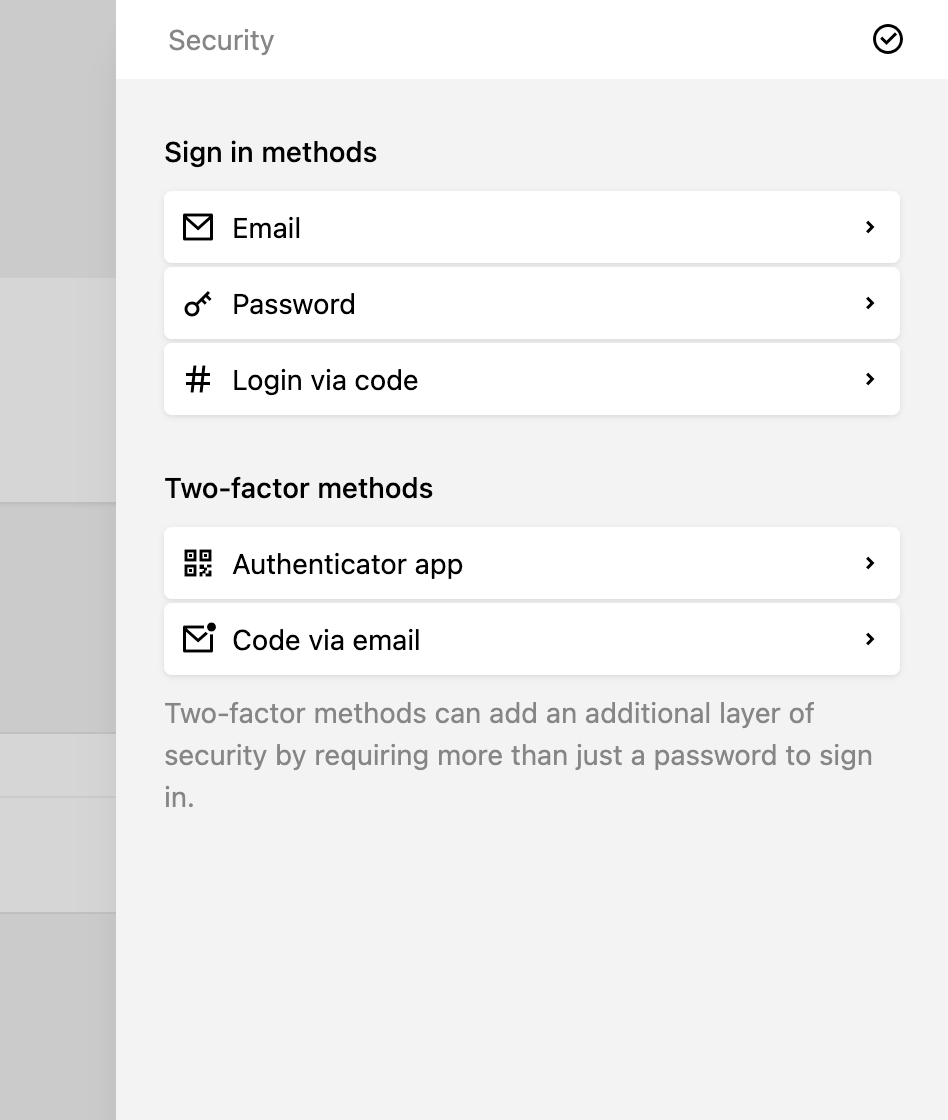
- Sign in methods lists the account's email address and the enabled login methods from
auth.methods: password, login via code and passkeys. - Two-factor methods lists the second factors enabled in
auth.challenges: passkeys, authenticator app and code via email.
Custom login methods and second factors from plugins can add their own entries, so users set them up in the same place as the core ones. Learn how in Custom auth methods & challenges.
New login view
The Panel login view has been rebuilt. Each step has its own URL: /panel/login/method/password, /panel/login/method/webauthn, /panel/login/challenge/totp and so on. /panel/login redirects to the first method from auth.methods.
- Method picker: all other enabled login methods are listed below the form, e.g. "Login with passkey" or "Forgot your password?".
- Challenge switcher: during the second step, users can switch to any other second factor available to them, without starting over.
Plugins can bring their own login methods and second factors, each with their own form in this view. Read more in Custom auth methods & challenges.